 Recommendation:
In order to help prevent the upload of viruses with attachments, install
anti-virus software on all servers to ensure that all documents being
uploaded are scanned immediately.
Recommendation:
In order to help prevent the upload of viruses with attachments, install
anti-virus software on all servers to ensure that all documents being
uploaded are scanned immediately.
If attachments have been defined for the awards program, the attachments can be uploaded along with the nominator. This step assumes you have already added the nominee and nominator information.
Recommendation:
In order to help prevent the upload of viruses with attachments, install
anti-virus software on all servers to ensure that all documents being
uploaded are scanned immediately.
All attachments are uploaded to the file server and a folder is created for each nominee. The folder name is comprised of the award code, the full customer ID, the last name of the nominee, and the first name of the nominee. Individual attachments are automatically saved with a prefix of the award code and nominee’s last name.
Keep in mind that a change to the customer’s
name will cause a mismatch in the attachment naming convention.
To add an attachment to the nominator record:
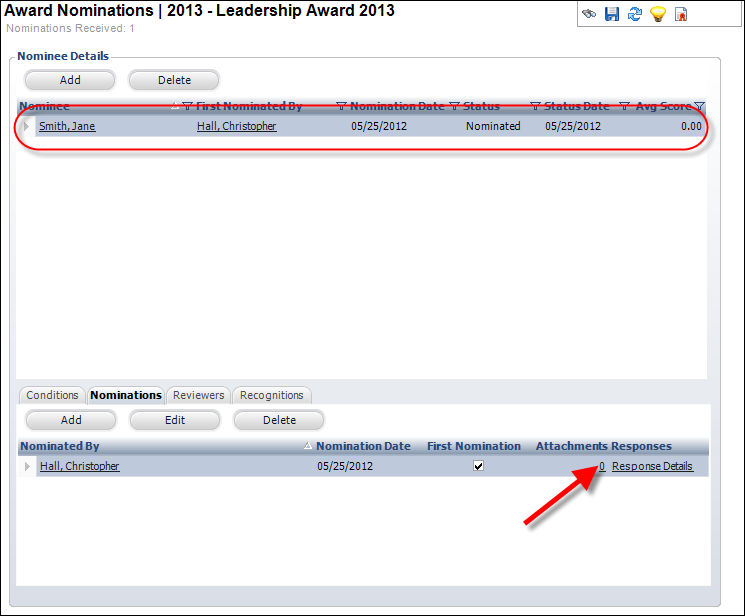
1. From the Award Nominations screen, on the Nominations tab, select the appropriate nominator that provided the attachment.
2. From
the Attachments column, click the numbered link, as shown below.
The Maintain Attachments screen is displayed, as shown below.
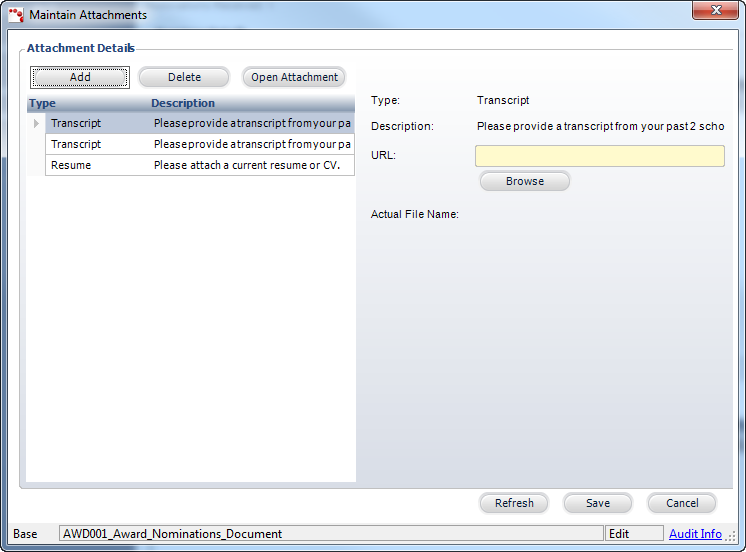
3. Click
Add.
The Choose a Document screen is displayed.
4. Select the appropriate type of document.
5. Click Browse.
6. Navigate
to the appropriate document.
The document’s URL is automatically added.
There is no size limitation for attachments
uploaded via the back-office.
7. Click
Save.
The attachment is saved and the link in the Attachments column is updated
to the number of attachments added. To review the attachments at any time,
click on the attachments link from the grid on the Nominations tab.