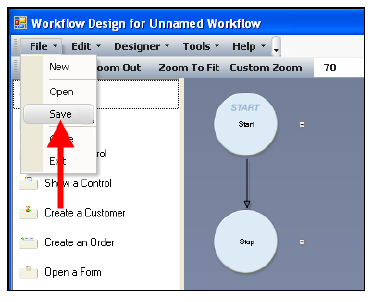
Before exiting the Workflow Designer, you need to save your workflow so you do not lose the existing settings. Saving the workflow does not mean users can trigger it in Personify Enterprise or Personify e-Business. Instead, the workflow saves locally (just as with application and web forms) until you integrate it to a form, save the form, and finally publish the form.
To save a workflow:
· From
within the designer on the menu bar, select File
> Save.
All workflow objects you drop onto your canvas must have a clear rule created for them before you can save the workflow. If you have not created rules for all the objects in the workflow and you try to save it, an error message similar to the one below appears.
If this occurs, open the rule for each object and create a rule for any that are missing before trying to save the workflow again.
 If
you close the Designer by clicking the X in the top-right corner before
saving your workflow, the Designer asks you if you want to save it. TMA
Resources recommends clicking “Yes” and saving your workflow because clicking
"No" closes the Designer and you lose any work you completed
during that session.
If
you close the Designer by clicking the X in the top-right corner before
saving your workflow, the Designer asks you if you want to save it. TMA
Resources recommends clicking “Yes” and saving your workflow because clicking
"No" closes the Designer and you lose any work you completed
during that session.