 This
section assumes you want to integrate an existing workflow into a form.
For instructions on creating workflows, please refer to the previous section,
Creating a Workflow.
This
section assumes you want to integrate an existing workflow into a form.
For instructions on creating workflows, please refer to the previous section,
Creating a Workflow.
You can integrate an existing workflow into any of the following Studio Tool elements: forms, pages, or specific standard controls. You can also integrate multiple workflows into a single element. However, you can only integrate a workflow into an element on the form in which you created the workflow (i.e., workflows created for the Advertising Package Setup form can only be integrated into elements on the Advertising Package Setup form).
The element you integrate the workflow into is the element you want the user to interact with in order for the workflow to trigger. The list of available elements you can attach a workflow to appear in Workflow Properties.
This
section assumes you want to integrate an existing workflow into a form.
For instructions on creating workflows, please refer to the previous section,
Creating a Workflow.
To integrate a workflow:
1. Open the form via its appropriate tool (Application Designer/Web Forms Designer).
2. Select the element from the form you want to create a workflow with (or the form itself).
3. In the Workflow properties section, click the (...) button next to one of the following properties. These properties are the events that must occur based on user action in order for a workflow to trigger.
· OnFormLoad
· OnFormUnload
· OnSaveFailure
· OnSaveSuccess
· PageActivated
· OnValueValidated
· OnClick
· OnCheckChange
The
Workflow properties available depend on the form or control selected to
associate the workflow with. For more information on the properties associated
with each form or control, please refer to Workflow
Properties.
Upon clicking (...), the Available Rules
window displays listing all workflows associated with the form you are
working on.
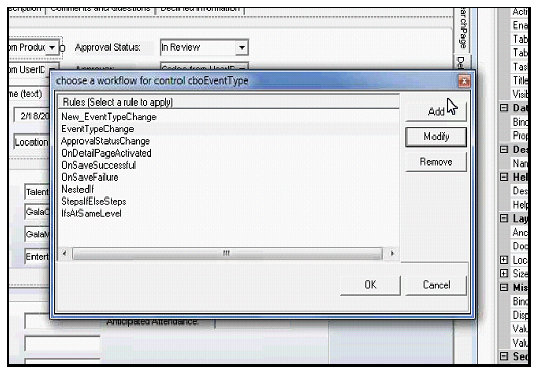
4. Select
a rule from the list and click OK.
The rule you select for the property is the workflow you want to execute
when the event triggers it.
The Workflow Name appears as the value for the Workflow property.
5. Save and publish the form.
From the Available Rules window, you can also perform the following actions:
· Create a new workflow – Click Add to open the Personify Workflow Designer, and create a new workflow before returning to this window and selecting the new workflow.
· Modify an exiting workflow – Select a rule and click Modify to open the workflow in Personify Workflow Designer, and modify it before saving it and returning to this window to select the modified workflow.
· Delete an existing workflow – Select a rule and click Remove. The application asks if you are sure you want to delete the workflow. Click Yes to delete it completely from your form’s RULEAPP file.
If
you remove a workflow from the Choose a Workflow list that you have already
integrated with an entity, the workflow name still appears in the entity’s
workflow property value after closing the Choose a Workflow window. Since
you have already deleted the workflow from the designer, it cannot execute
in the future even though it still appears as the property value. You
must manually delete the name from the Property Value in order to remove
it.