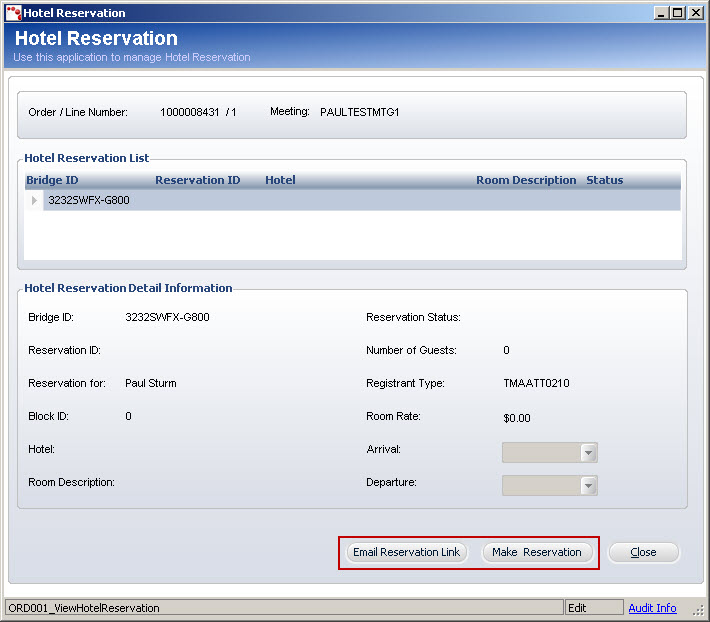
The Hotel Reservation window displays, containing Hotel Reservation List and Detail Information. From this window, you can email a reservation link to any recipients of your choice or make a hotel reservation through Passkey.
To configure Passkey hotel reservations on the Order Entry screen:
1. From the main toolbar, select Orders > Registrations and Orders.
2. Search for and select a customer for which you wish to create the order.
3. From the Product Chooser tab on the left-hand side, expand All Products.
4. Expand Meetings.
5. Select the meeting you previously set up with hotel reservation and click Add to Order.
6. Click
Save.
A Hotel Reservation prompt window displays.
7. Click OK.
8. Right-click
the product under Order Detail.
A drop-down menu displays.
9. Select
Create Hotel Reservation.
The Hotel Reservation window displays, containing Hotel Reservation List
and Detail Information. From this window, you can email a reservation
link to any recipients of your choice or make a hotel reservation through
Passkey.
This window displays all of the hotel reservation information. It is also
linked with Passkey; if you update your reservation in Passkey, the information
will update in this window as well. Selecting Email Reservation Link
will bring up a Send E-Mail window that allows you to send messages
to your members or customers notifying them that a hotel block has been
reserved for the event/meeting and that they may register for a hotel
room within that block using the Passkey site. Clicking Make Reservation
will take you directly to the Passkey Hotel Reservation site within Personify
Back Office. For more information, see Sample
Passkey Workflow.