The Subscription Product Chooser displays.
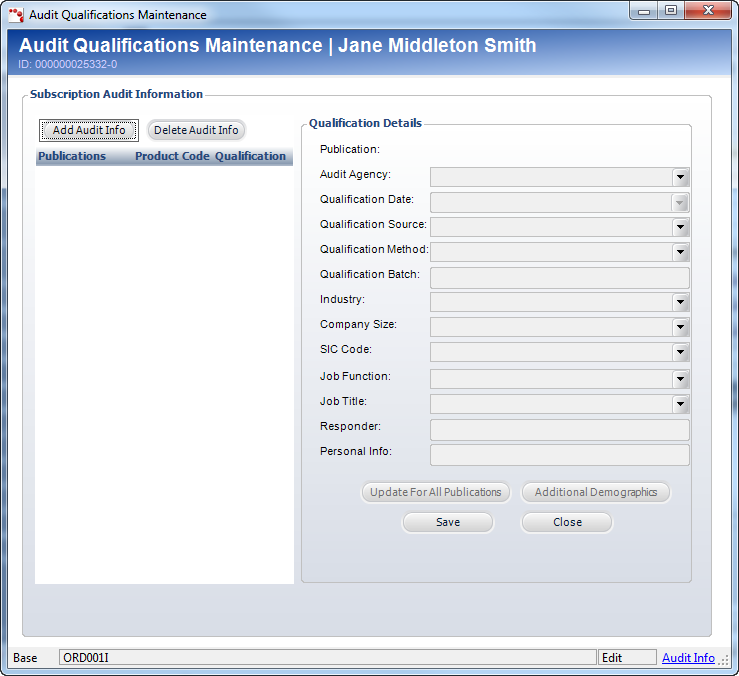
Here you can add subscription audit, publication, and qualification information. You can enter information from the qualification car or other device and identify each individual item being reported.
You can access this screen by performing one of the following:
· On the Order Entry screen, click View Subscription Audit Info from the Work with Line Items task category.
· On the CRM360® screen, click Subscription-Specific Audit Info from the Background Information task category.
To add subscription audit qualifications:
1. On
the Subscription Audit Information screen (shown below), click Add
Audit Info.
The Subscription Product Chooser displays.
2. Search for and select the appropriate subscription product.
3. Select the Qualification Date from the drop-down.
4. Select
the Qualification Source from the drop-down.
Values in the drop-down are populated based on the codes defined for the
fixed SUB "QUALIFICATION_SOURCE"
system type.
5. Select
the Qualification Method from the drop-down.
Values in the drop-down are populated based on the codes defined for the
fixed SUB "QUALIFICATION_METHOD"
system type.
6. Enter the Qualification Batch number.
7. If necessary, select the following information related to the subscription audit:
· Industry
· Company Size
· SIC Code
· Job Function
· Job Title
· Responder
· Personal Info
8. Click Save.
9. If you have more than one publication audit information defined and want to update the information of one publication to all the other publications, click Update for All Publications.
 Please
note that if one of the publications has a past date, the system will
disable that record and create a new record with today's date.
Please
note that if one of the publications has a past date, the system will
disable that record and create a new record with today's date.