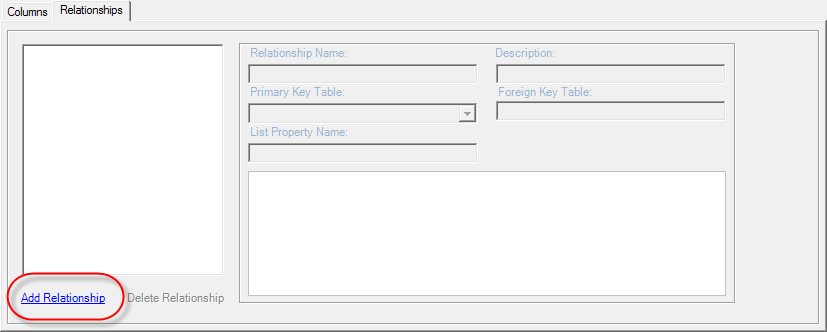
To view a relationship:
1. Click the Relationships tab.
2. Click
the Add Relationship link
as shown at the bottom of the image below.
3. The
relationship window features a Relationship
Name text box, Description
text box, and a Primary Key Table
drop-down. You can also designate a PrimaryKey
and ForeignKey Column.
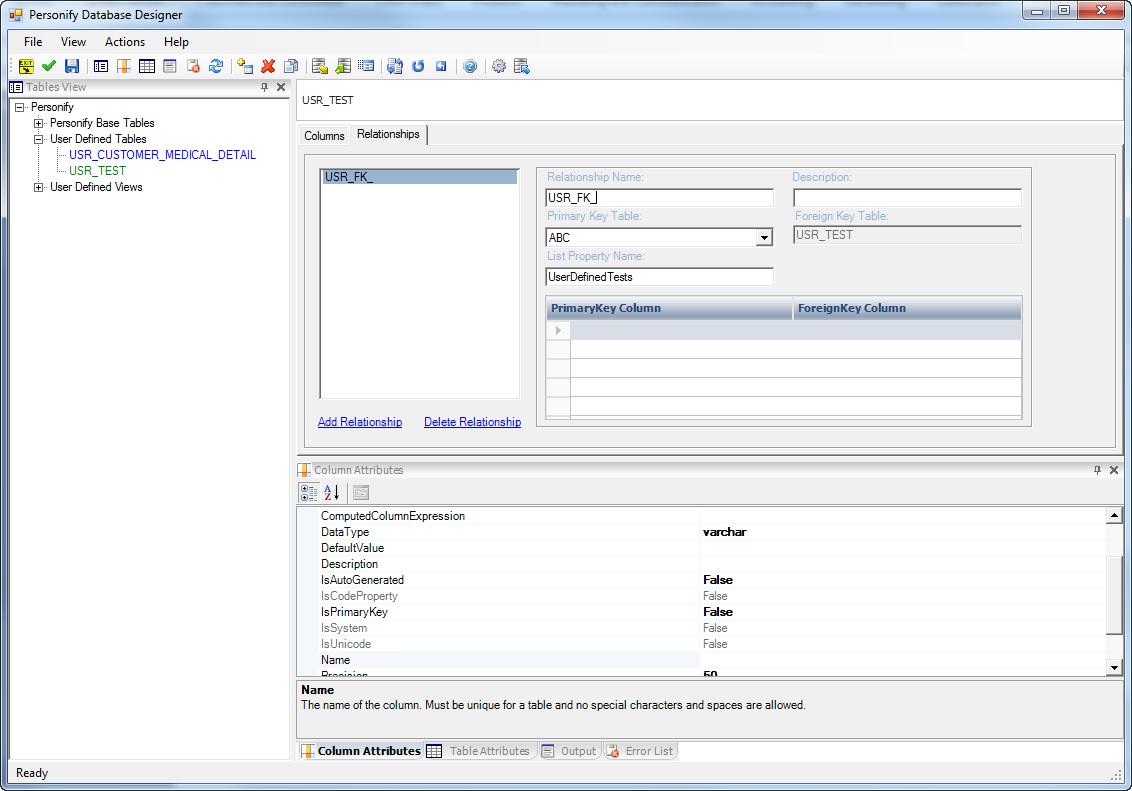
 Once
you add a relationship name after the “USR_FK_” prefix, the Description
field automatically populates with the new relationship name if you tab
to the Description field or click the field. You can change this default
table description if you like.
Once
you add a relationship name after the “USR_FK_” prefix, the Description
field automatically populates with the new relationship name if you tab
to the Description field or click the field. You can change this default
table description if you like.
When you select the Primary Key Table and click elsewhere within the Relationships tab, the new relationship is saved. You can click on an existing relationship and modify it as shown above. If you want to delete a relationship, select the relationship and then click Delete Relationship.
Once
you click Delete Relationship, it disappears immediately. There is not
a confirmation dialog box or a way to retrieve a deleted relationship.