 Without
the e-Business control, users will only see the Buy
Now and Donate Now options,
if they have a credit card on record.
Without
the e-Business control, users will only see the Buy
Now and Donate Now options,
if they have a credit card on record.
This process is similar to configuring a product to display on your e-Business site. For products on the mobile application, you need to create an e-Business control and a mobile control (similar to an e-Business control) via the Product Central screen.
Without
the e-Business control, users will only see the Buy
Now and Donate Now options,
if they have a credit card on record.
Once you create a mobile control for a product, your users can view the product and its details through the Store module. Products only display in the Store module if defined according to the instructions below.
To configure an inventoried product for purchase on Personify Mobile:
1. From
the Personify main toolbar, select Products
> Product Central.
The Product Maintenance search screen displays, as shown below.
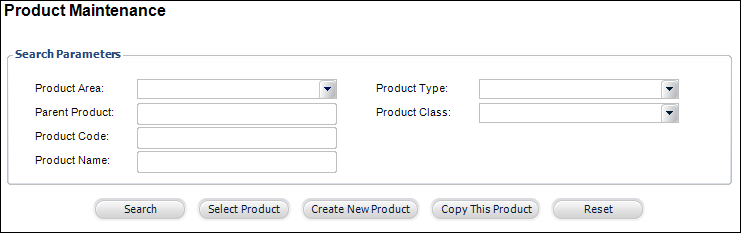
2. Click Create New Product or select "Inventoried Products Subsystem" from the Product Area drop-down and click Search.
3. Select
the product you want to display on the mobile application and click Select Product.
The product displays on the General Setup screen, as shown below.
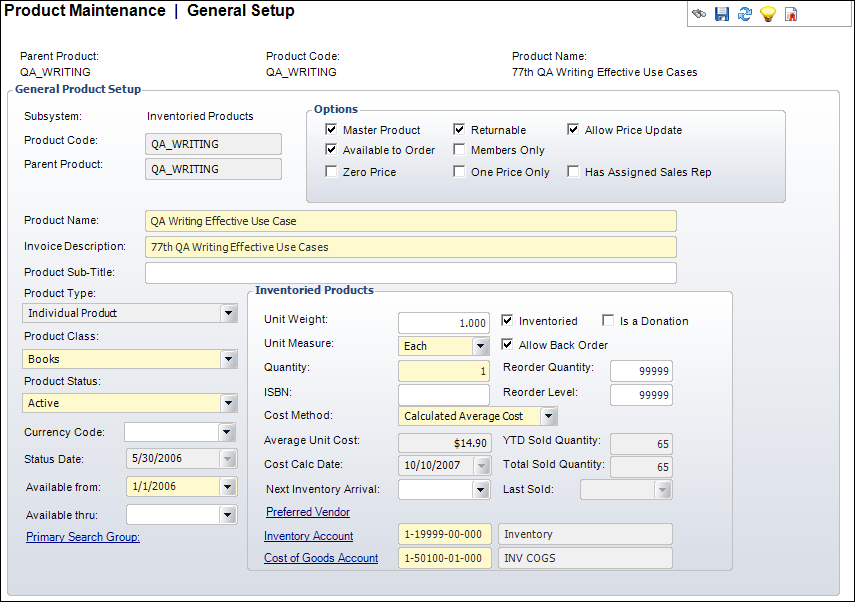
4. From the Options section, ensure that the Master Product and Available to Order checkboxes are selected.
5. Ensure the product has a Product Status of “Active”.
For a product
to be listed in the Mobile Store, it must meet the availability requirements
in the back office first. Any product with a “Cancelled,” “Discontinued,”
or “Inactive” status in the back office will not display in the Mobile
Store regardless of your mobile control settings.
6. Ensure that the Available from date is today or a day in the past.
7. Ensure that the Available thru date is null, today's date, or a future date.
8. From the Product Definition task category, ensure that a green checkmark displays next to the Validate Setup task. If not, please see Validating an Inventoried Product Setup for more information on validating the product setup.
9. From
the Product Definition task category, click Define
Rates and Pricing.
The Rates and Pricing screen displays, as shown below.
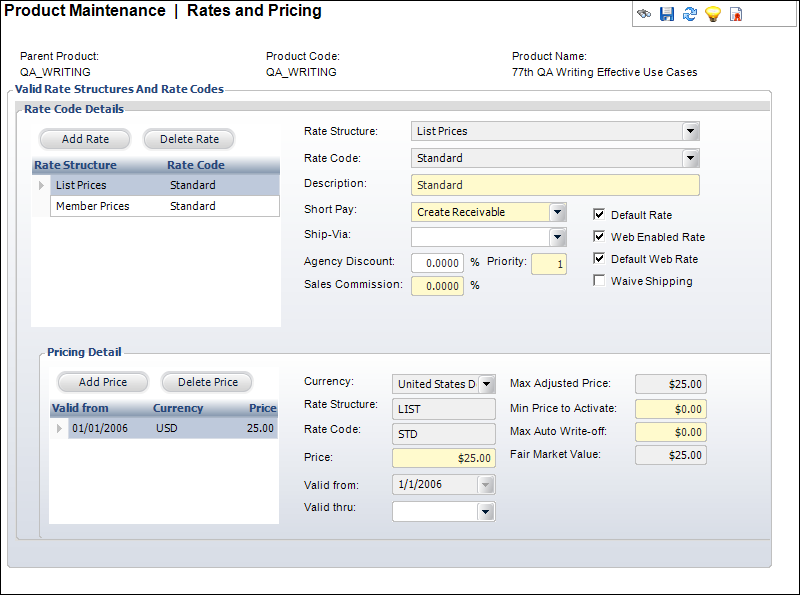
10. Ensure that at least one Rate Structure/Rate Code has the Web Enabled Rate checkbox selected.
Standard
e-Business rules apply for products.
11. From
the eBusiness Links task category, click eBusiness
Control.
The eBusiness Control screen displays, as shown below.
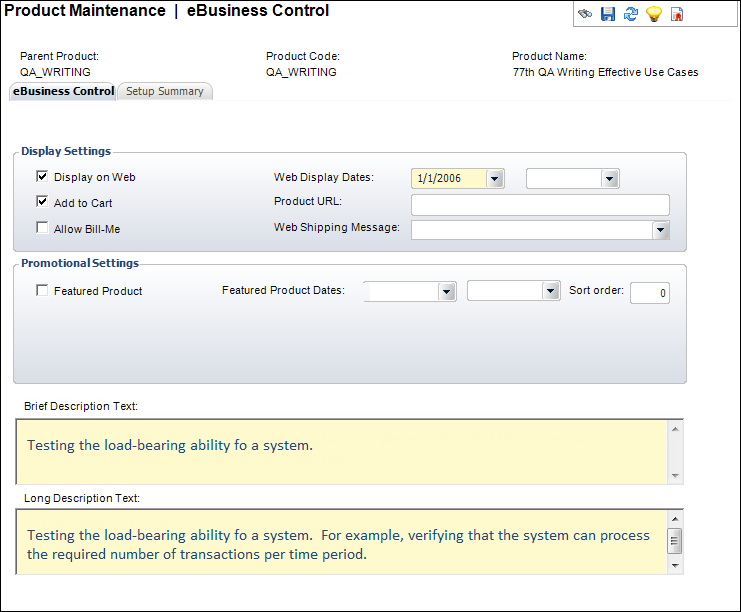
12. Ensure that the Display on Web and Add to Cart checkboxes are selected.
13. Ensure that the first Web Display Dates date is today or a day in the past.
14. Ensure that the second Web Display Dates date is null, today's date, or a future date.
15. From
the eBusiness Links task category, click Mobile
Control.
The Mobile Control screen displays for you to enter the Mobile-specific
values.
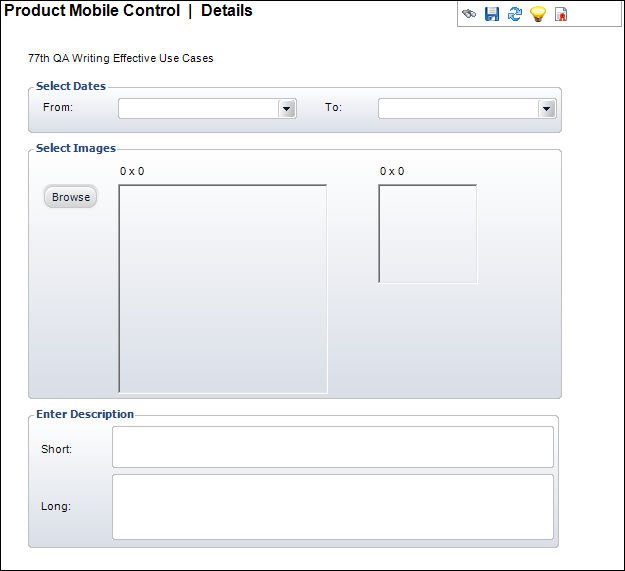
16. From the Select Dates section, select the From date as today or a date in the past.
17. If
necessary, select the To date
as today or a future date.
The product only appears in the Mobile Store during these dates.
18. If
you would like to enter a product image to be displayed on the Event Details
screen in the Mobile Events module, from the Select Images section, click
Browse and select the image from
your database.
The application automatically resizes the second image.
19. If desired, enter a short description to be displayed on the Product Details screen.
If you want
to include a date in the Short description field make sure to use the
following format: xx-xx-xxxx. The Personify Mobile application will NOT
render dates in the following format: xx/xx/xxxx.
20. If
desired, enter a long description.
This description is for recording purposes only – mobile users will not
see this anywhere.
21. Click
Save.
The product will now appear for purchase in the Mobile Store based on the
product’s availability and the dates you entered.