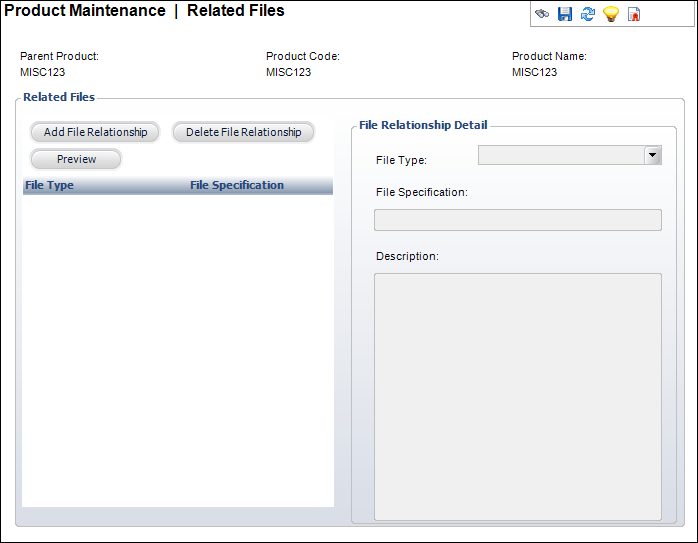
The Related Files screen displays, as shown below.
You can associate an active miscellaneous product with documents, images, or abstracts. Inventoried products can be linked to user guides, product rebates, or other product instructions.
To setup Related Files:
1. Click
Related Files from the Relationships
task category.
The Related Files screen displays, as shown below.
2. Click
Add File Relationship.
A Windows Explorer screen displays.
3. Search for and select the file to add.
4. Select the File Type from the drop-down.
5. If necessary, edit the File Specification.
6. If necessary, edit the file Description.
7. Click Save.
Screen Elements |
Description |
|---|---|
Related Files |
|
Add File Relationship |
Button. When clicked, a row is added to the Related Files table and the corresponding fields are enabled to add a related file. |
Delete File Relationship |
Button. When clicked, the highlighted row from the table and the information entered in the File Relationship Detail fields are deleted. |
File Relationship Detail |
|
File Type |
Drop-down. Describes the purpose of the file. |
File Specification |
Text box. Name of the file selected for the file relationship. |
Description |
Text box. A free-form text description of the file. |