The Related Customers screen displays, as shown below.
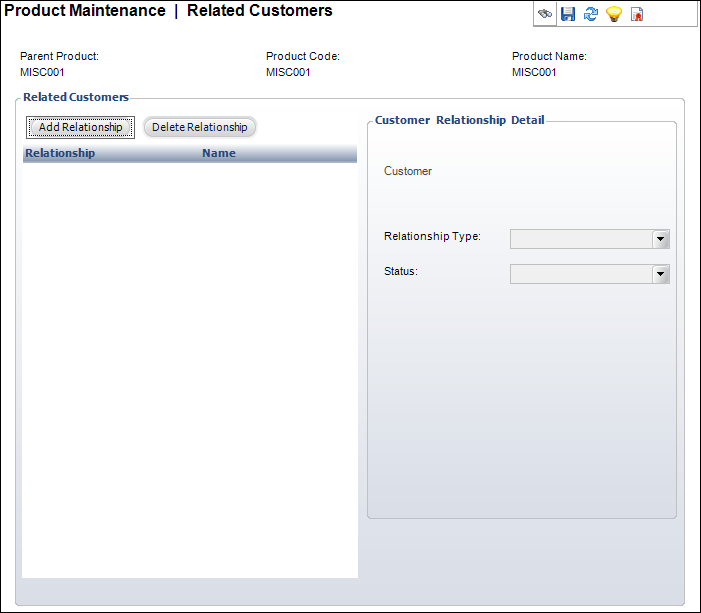
Many products are related to authors, publishers, vendors, product managers, etc. This information is searchable both by Web users as well as operators of the customer service system. For instance, you might use this feature to see all products authored by a specific person. This tab maintains a list of customers associated with this product, along with optional links to their abstract, if available.
To setup Related Customers:
1. Click
Related Customers from the
Relationships task category.
The Related Customers screen displays, as shown below.
2. Click
Add Relationship.
The Customer Chooser screen displays. Enter information and search for
a customer. Double-click a customer to add it to the table.
3. Select the Relationship Type from the drop-down.
4. Select the Status from the drop-down.
5. Click Save.
Screen Elements |
Description |
|---|---|
Related Customers |
|
Add Relationship |
Button. When clicked, a row is added to the Related Customers table and the corresponding fields are enabled to add a related customer. |
Delete Relationship |
Button. When clicked, the highlighted row from the table and the information entered in the Customer Relationship Detail fields are deleted. |
Customer Relationship Detail |
|
Relationship Type |
Drop-down. Classifies the relationship, for example Speaker, Author, Publisher, Vendor, Product Manager, etc. (populated from APP_CODE table). |
Customer |
Link. Customer ID and name of customer, last name first, from customer table. |
Status |
Drop-down. User-defined status of the individual for this product. For example, Assigned, Confirmed, or Invited. |