The Corporate Associates screen displays, as shown below.
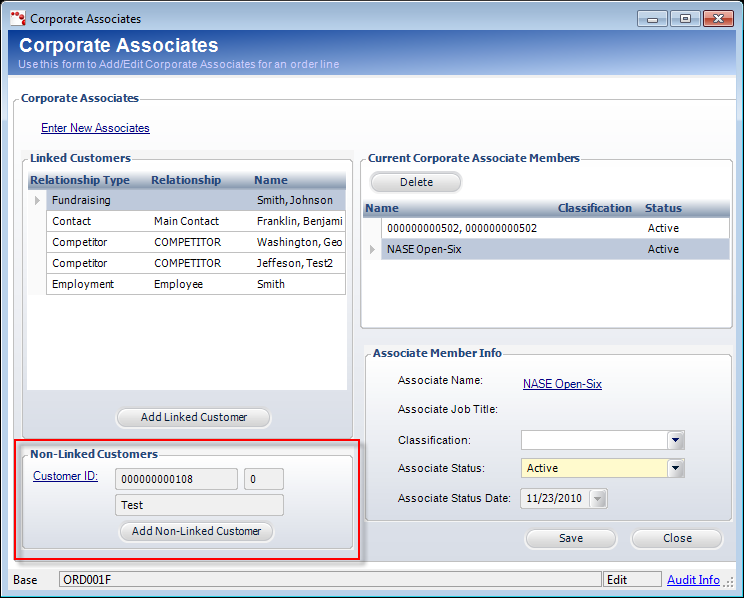
To add an associate that will be linked to the order but will NOT share the company’s primary ship-to address, use the Non-Linked Customers section.
To add a non-linked customer:
1. From the Order
Entry screen, click Edit Corporate Associates from the Work with
Line Items task category.
The Corporate Associates screen displays, as shown below.
2. From the Non-Linked
Customers section (highlighted to the right), click the Customer ID
link.
The Customer Chooser is displayed.
3. Search for and select the appropriate customer.
4. Click Add Non-Linked
Customer.
The customer is added to the Current Corporate Associate Members grid to
the right.
5. If necessary, update the information in the Associate Member Info section.
6. Click Save.