The Corporate Associates screen is displayed, as shown below.
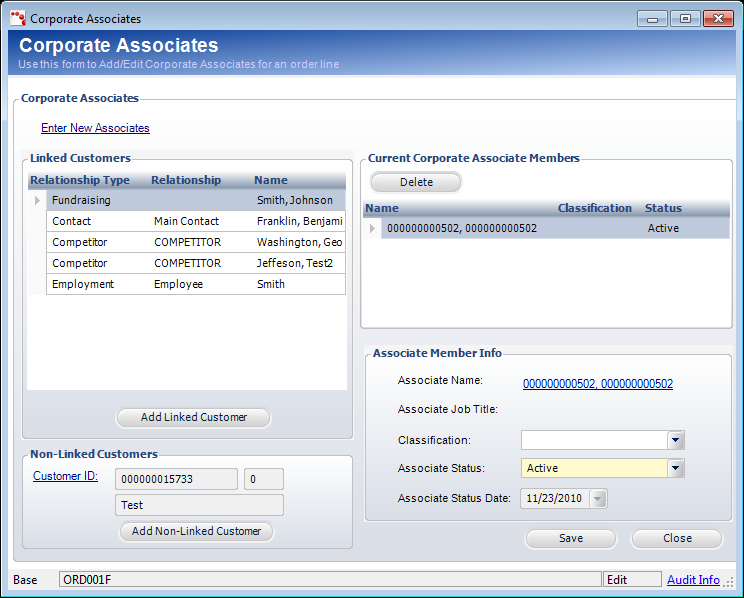
If the business rule for corporate associates is to have their company’s address as their address, then those associates need to be added as a “linked customer.” Adding a linked customer to an order will create a link from the associate customer to the address on the order.
To add a linked customer:
1. From the Order
Entry screen, click Edit Corporate Associates from the Work with
Line Items task category.
The Corporate Associates screen is displayed, as shown below.
2. Highlight the
appropriate row from the Linked Customers grid and click Add Linked
Customer.
The customer is added to the Current Corporate Associate Members grid on
the right.
3. From the Associate Member Info section, select the Classification from the drop-down, if necessary.
4. Select the Associate Status from the drop-down.
5. If necessary, change the Associate Status Date from the drop-down.
6. Click Save.
 To substitute an individual
for the current associate, change the Associate Status to “Cancelled”.
Add a linked customer or a non-linked customer into the Associate Members
section. The Associate Status for the newly added customer will be “Active”
with today’s date and this customer will now receive member benefits.
To substitute an individual
for the current associate, change the Associate Status to “Cancelled”.
Add a linked customer or a non-linked customer into the Associate Members
section. The Associate Status for the newly added customer will be “Active”
with today’s date and this customer will now receive member benefits.