 Inventoried
product orders can only be cancelled after the product is added to the
order and payment is received and BEFORE a packing slip has been generated.
If a packing slip has been generated, you must return
the inventoried product.
Inventoried
product orders can only be cancelled after the product is added to the
order and payment is received and BEFORE a packing slip has been generated.
If a packing slip has been generated, you must return
the inventoried product.
Inventoried
product orders can only be cancelled after the product is added to the
order and payment is received and BEFORE a packing slip has been generated.
If a packing slip has been generated, you must return
the inventoried product.
An inventoried product order may need to be cancelled and the customer may request a refund before the item receives a packing slip and is shipped.
To refund and cancel an inventoried product order:
1. On the Order Entry screen, select the appropriate line item.
Click
Cancel an Item from the Work with Line Items task category or Cancel
an Order from the Work with Orders task category.
The Cancellation and Refunds screen displays, as shown below.
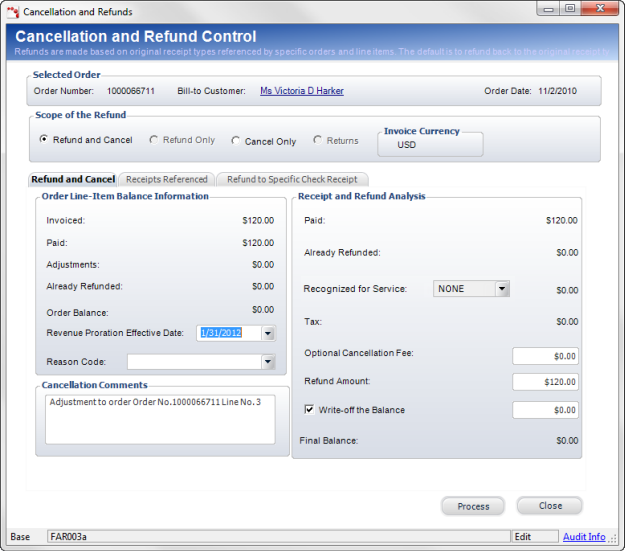
2. From the Scope of the Refund section, select the Refund and Cancel radio button, as shown to the right.
3. On the Item to Cancel or Refund tab, select the appropriate line item to cancel and refund.
On the Refund and Cancel tab, select the Revenue Proration Effective Date.
4. Select the Reason Code from the drop-down.
5. Enter any Cancellation Comments.
6. Enter the Optional Cancellation Fees, if necessary.
7. Enter the Refund Amount.
If you do not refund 100%
of the amount paid on order line, leaving a credit balance, the system
automatically distributes it to other unshipped INV lines in
the order with a balance due caused by the recalculation of the shipping
charges. As of 7.4.2, this happens for type 1 and type 3 receipts.
8. If you check the Write-off the Balance checkbox, then enter the amount of the write-off in the text box.
9. 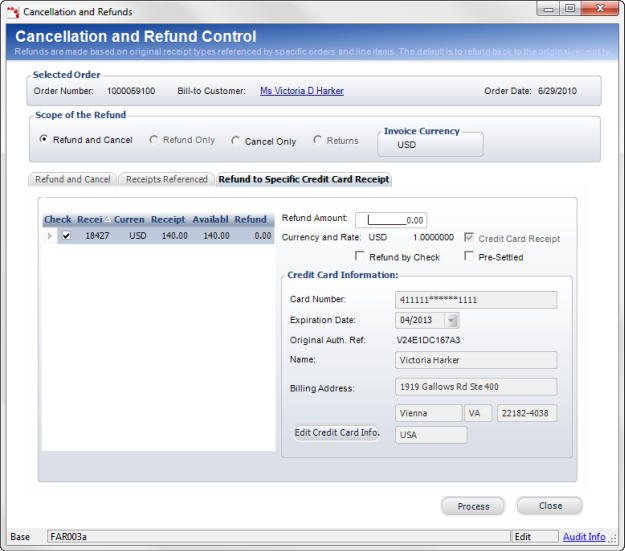
10. To refund the order by check, select Refund by Check and proceed to the Refund to Specific check tab.
11. If necessary, click Edit Credit Card Info.
a. If multiple payments were made, select the Check checkbox next to the appropriate payment from the grid.
b. If you select the Check Pre-Cut checkbox, enter the Check Number.
c. If necessary, click the Payor link to view more details about the customer.
You
cannot change the Payor on this refund. If the check refund needs to be
refunded to a different customer other than the payor (bill-to customer)
a new receipt must be entered for the correct payor and the original receipt
must be reversed.
d. If necessary, click the Voucher Address link to select a different address.
12. Enter any Notes on Advices.
a. Click Process.
The Cancellation and Refunds screen closes and the status of the order
line changes to “Cancelled”.