 You
can only create one brief description record per language for each product.
You
can only create one brief description record per language for each product.
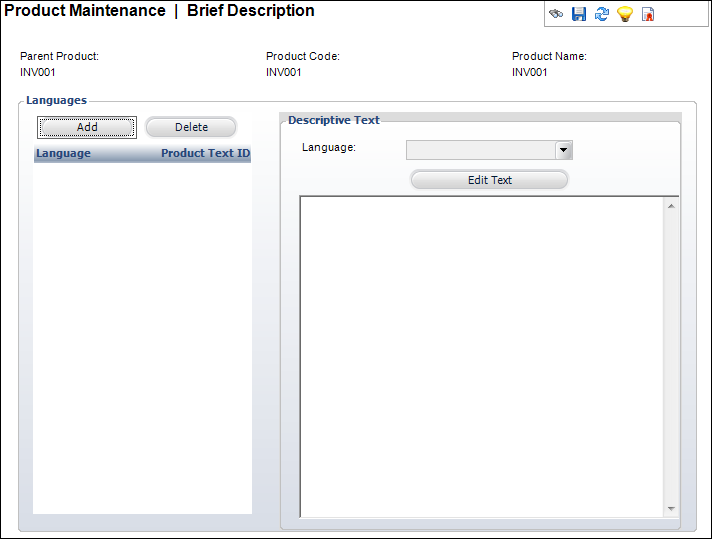
In the Brief Description screen, you can define the brief description that is displayed on the website. This description displays in the Product Listing Web module. You can enter the brief description using a Design Window or a Code Window.
The Design Window displays the HTML text editor tools, which are used to format the text similar to Microsoft Word. Some benefits of HTML includes the ability to emphasize text, use block quotations, and use diagrams or mathematical formulas. The problems with using HTML include compatibility issues, privacy attacks, increased spam, and large message sizes.
The Code Window is used to enter the brief description in unformatted plain text. Even though this method is unformatted, it can be used without very much processing readable by simple computer tools, such as line printing text commands in Windows DOS window type.
You
can only create one brief description record per language for each product.
To add a brief description:
1. From
the eBusiness Links task category, click Brief
Description.
The Brief Description screen displays, as shown below.
2. Click
Add.
An HTML Editor Dialog box displays.
3. Enter
any HTML text or graphics in the text box.
You can also click the Code Window radio button to enter your description
in HTML code.
4. Click Save.
Screen Element |
Description |
|---|---|
Add |
Button. When clicked, a row is added to the Languages table and the corresponding fields are enabled to add a language and description. |
Delete |
Button. When clicked, the highlighted row from the table and the information entered in the Languages and Brief Description Text fields are deleted. |
Language |
Table row. Identifies the language of the text. This allows descriptive text to be shown on the website based on the language of the customer. Values are populated based on the options defined on the Language Maintenance (APP004) screen. |
Edit Text |
Button. When clicked, opens the HTML Editor Dialog window. This allows you to edit any previously created descriptions. |