 All common groups are grouped under “BO User Groups” in the Org-Org Unit drop-down.
The security policy for uploaded universes can also be assigned using the same tool. Universe security can be administered at the folder level and at the universe level.
Before applying security features, you should first verify your universe connections. To do this, simply click the Validate Universe Connection button located below the list of universes.
Once you validate the universe connection, a progress window is displayed at the bottom right of the screen. The Personify BOE Synchronizer informs you if the universe connection is working properly or if any anomalies occur.
To set universe security:
1. On the main menu at the top of the screen, click Universe Security.
On the left you will see all the available universes, universe connections, and assigned groups with their respective privileges.
2. To give privileges to a group, select the org-org unit from the drop-down under the group filter located in the top-left corner of the workspace.
All common groups are grouped under “BO User Groups” in the Org-Org Unit drop-down.
3. The box on the left displays all the available universes; select the desired universe.
The group names and their current role appear next to the list of universes as shown below.
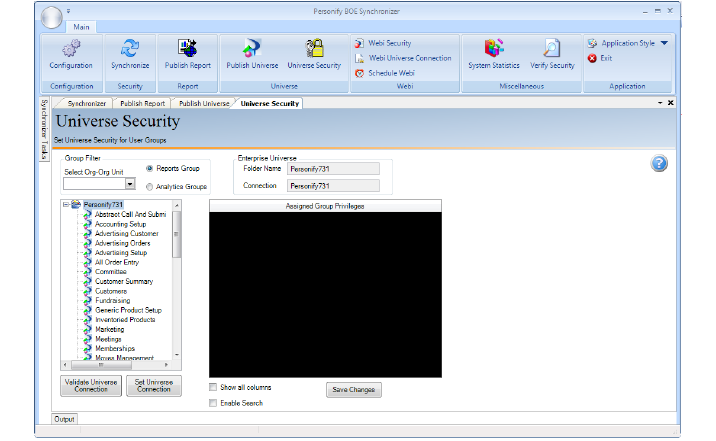
4. Apply the appropriate role to the desired group name by clicking the Role cell of the group and selecting the appropriate role from the drop-down that appears.
5. Click Save Changes.
When working with roles and rights, you can select multiple rights and apply a group setting to the selected rights. For example, you can select multiple group names by holding down the SHIFT key while clicking on the groups and apply any one of the available settings by right-clicking the selected groups and selecting the desired Role from the list that appears.