http://BOSERVER:8080/InfoViewApp/setGroupPreferences/logon.jsp
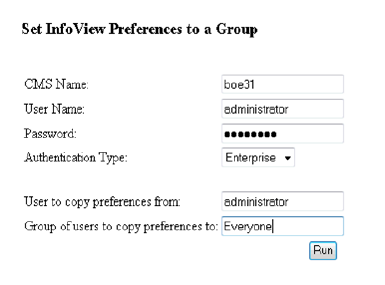
The Set Info View Preferences to a Group window displays like the following.
To propagate preferences:
1. Log in to Info View as a BO Administrator and click Preferences.
2. On the General tab, check Favorites as the Infoview Start Page.
3. Set the number of objects per page to “25.”
4. Uncheck all of the options under “Document List Display” and click OK.
5. Navigate to the following file path in your Personify Installation package:
...\Business Objects\Fresh Install\BOE ServerFiles.
6. Copy the following files:
· logon.jsp
· setGroupPreferences.jsp
· CopyPref.bat
7. Run the CopyPref.bat.
Once the batch file is run successfully, it should create a new “SetGroupPreferences” folder on the BO Server at the following location:\\Program Files\Business Objects\Tomcat55\webapps\InfoViewApp\
8. Run the following URL in your browser replace “BOSERVER” with your server name:
http://BOSERVER:8080/InfoViewApp/setGroupPreferences/logon.jsp
The Set Info View Preferences to a Group window displays like the following.
9. Enter the relevant details for the BOSERVER:
· In the “User to copy preferences from” field, enter the user for which the preference were set, as described above.
· In the “Group of users to copy preferences” field, enter “Everyone”
10. Click Run.
The preferences will then populate to all users in you environment.