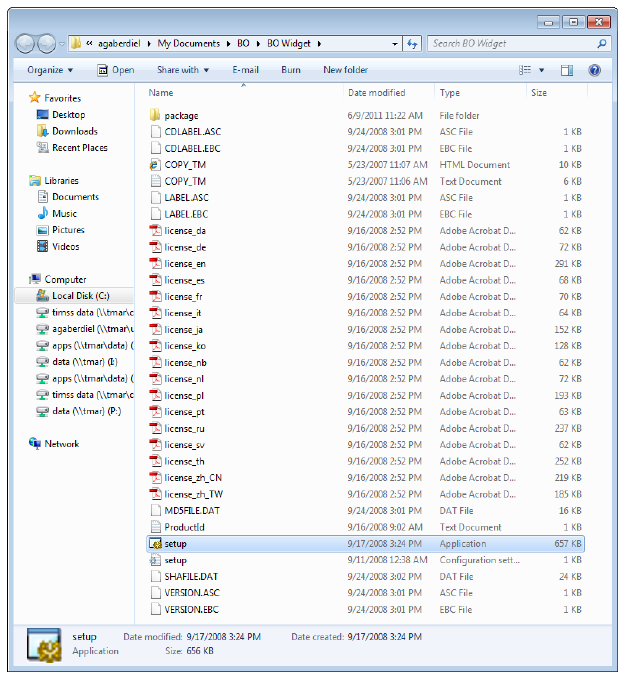
The zip file is located in the release package at the following file path:
Business Objects/Software Upgrades from BusinessObjects.
BI Widgets connect content on Business Objects XI R3 and display it as dynamically updating data using desktop widgets. Using widgets, you can have BusinessObjects content easily available, while using only a small portion of your desktop screen.
BI Widgets easily navigate to reports, which can easily be converted to widgets using drag and drop operations.
These widgets display your report content in a small desktop display. As the information in your source files changes, BI Widgets automatically updates the widget on your desktop, providing you with up-to-the-minute data at your fingertips.
To install the BI widgets:
1. Unzip the BI Widgets.zip file to your desired folder location.
The zip file is located in the release package at the following file path:
Business Objects/Software Upgrades from BusinessObjects.
2. Double-click the Setup.exe file.
The Open File - Security Warning window displays as shown below.
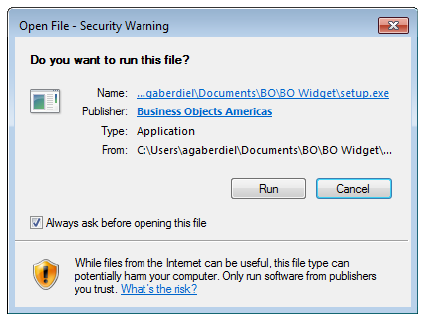
3. Click Run.
The BusinessObjects BI WIdget Setup window displays as shown below.
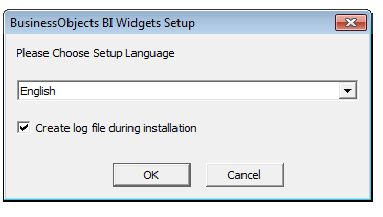
4. Select the appropriate setup language, leave the “Create log file during installation checkbox” selected, and click OK.
The Business Objects BI Widgets Setup window displays as shown below.
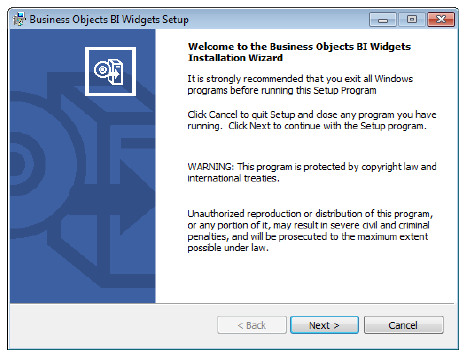
5. Click Next.
The License Agreement screen displays like the following.
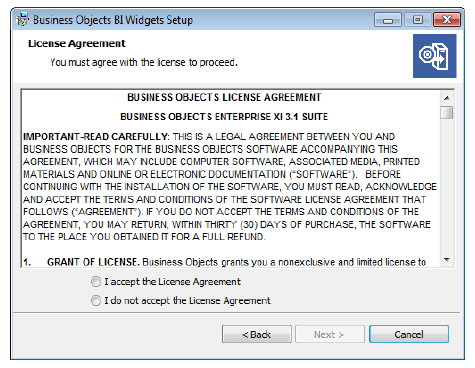
6. Read the license agreement and select the I accept the License Agreement radio button.
7. Click Next.
The Choose Language Packs screen displays as shown below.
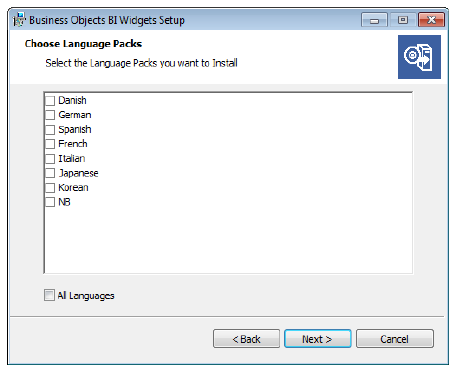
8. Select the appropriate language packs you want to install or select All Languages.
9. Click Next.
The Directory Selection screen displays.
10. Click Next.
The Start Installation screen displays.
11. Click Next.
The Installation begins as seen below.
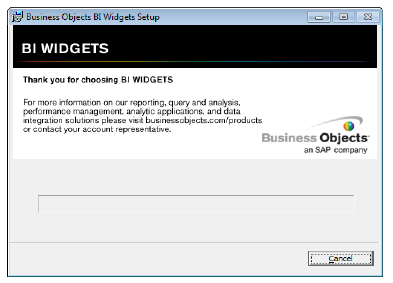
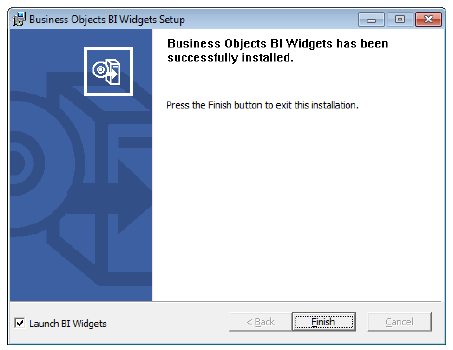
12. After the BO Widget has successfully installed, click Finish as shown below.