Within BusinessObjects, users have the option of creating a report and sending it to another user’s Inbox as a message for the other user to view that report. In order to provide your users with this ability, you need to grant your users with the correct security rights and ability to view all objects.
To enable report messaging to other BO users:
1. Login to Business Objects CMC.
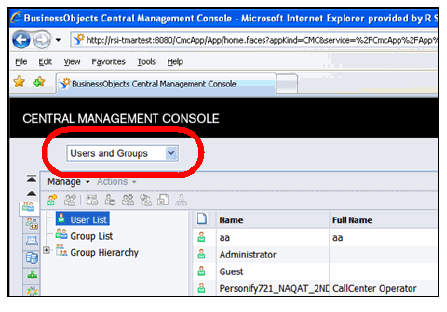
2. From the drop-down at the top, select Users and Groups as shown below.
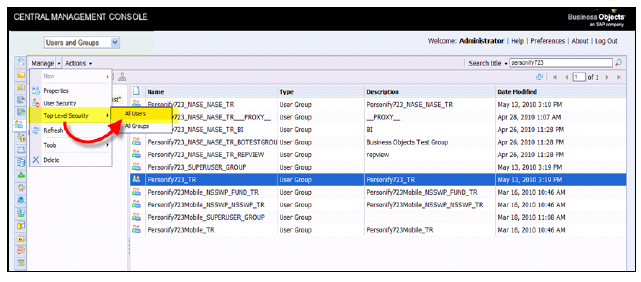
3. From the table’s menu bar, click the down arrow next to Manage and select Top Level Security > All Users as shown below.
4. On the resultant message, click OK.
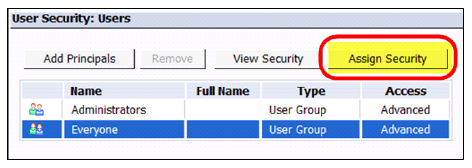
5. Within the table, select the Everyone User Group and click Assign Security as shown below.
6. Select the Advanced tab.
7. Click Add/Remove Rights.
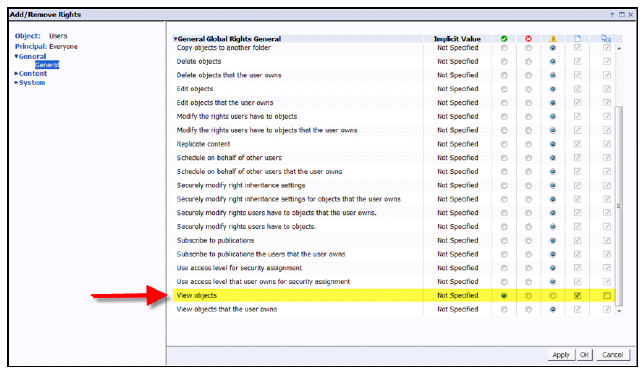
8. Grant the View Objects rights as shown below by selecting the checkmark radio button for that right.
9. Click Apply, then click OK, and close out of the window.
10. Locate the Personify7xx_TR group (e.g.; Personify731_TR).
 You can locate this group by entering the environment name (e.g., Personify731) in the Search Title field. The Personify7xx_TR group should appear in the search results for that specific environment.
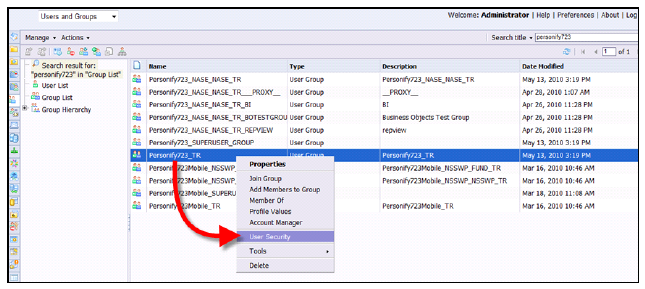
11. Right click the Personify7xx_TR group and select on User Security as shown below.
12. Click Add Principals to make the Add Principals screen to display.
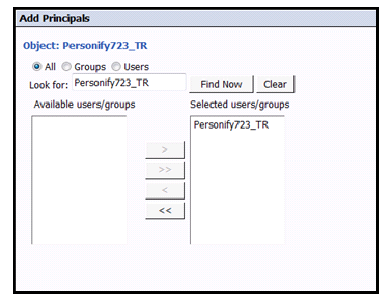
13. Enter the Personify7xx_TR group in the Look For field and click Find Now.
14. Select the group from the Available Users/Group list and click (>) to move it to the Selected Users/Groups list as shown below.
15. Click Add and Assign Security.
16. Select the Advanced tab.
17. Click Add/Remove Rights.
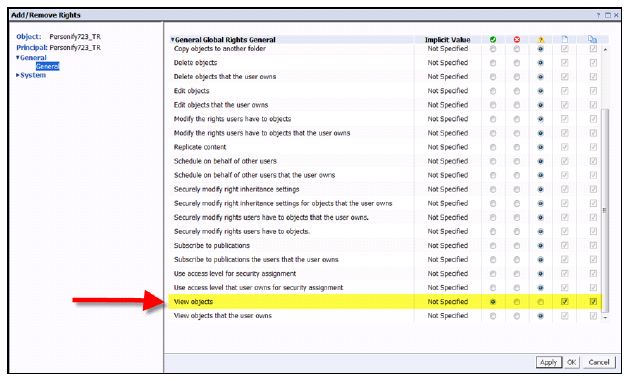
18. Grant the View Objects rights as shown below by selecting the checkmark radio button for that right.
19. Click Apply, then click OK, and close out of the window.