CORFLAGS.exe /32BIT+ <EXE File Name>
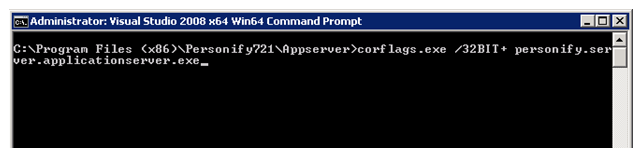
In a 64 -bit machine, the “Program Files” folder is named “Program Files (x86)”.
To configure the BusinessObjects Enterprise Server on a 64-bit machine:
1. From the Business Objects\Fresh Install\Misc folder, cut and paste the U25IDAutomation.dll file to the Windows\SysWOW64 folder.
2. If you have customer TRS EXEs, then compile all application EXE files in 32-bit mode using the following commands from the Visual Studio .NET Command Prompt, as shown below:
CORFLAGS.exe /32BIT+ <EXE File Name>
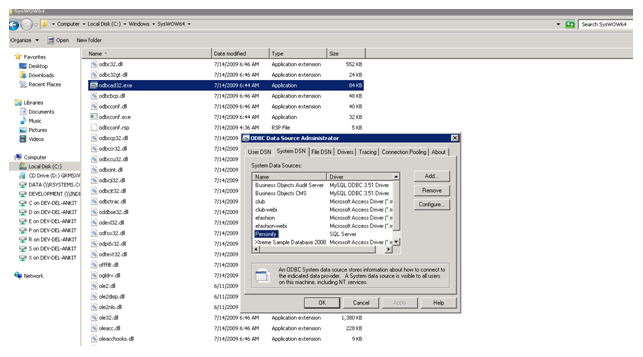
3. Configure the Data Source (create the DSN connection) by double-clicking the odbcad32.exe file from the Windows\SysWOW64 folder.
The ODBC Data Source Administrator dialog displays where you can create a new System DSN to set as the Personify Reports Data Source as shown below.