Configuring SAP BusinessIntelligence on an iPhone/iPad
1. Download
the SAP BI application from the App Store™.
 Make
sure the BO server has a public IP address so that it is accessible from
your iPhone / iPad, or make sure you are connected to VPN and can access
the server. To test the connectivity enter the following url in the browser
of your device and it should take you to the tomcat page of the server.
Make
sure the BO server has a public IP address so that it is accessible from
your iPhone / iPad, or make sure you are connected to VPN and can access
the server. To test the connectivity enter the following url in the browser
of your device and it should take you to the tomcat page of the server.
http://<BOSERVER>:8080
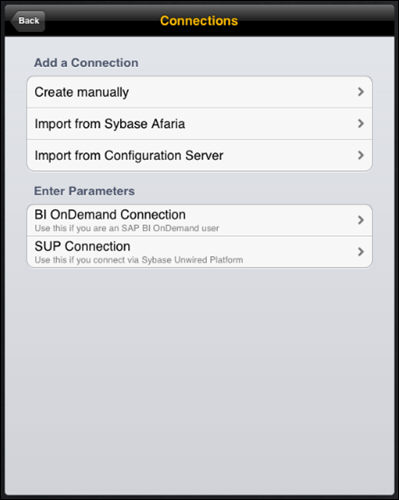
2. Click
the connections button.
3. Click
Create Manually.
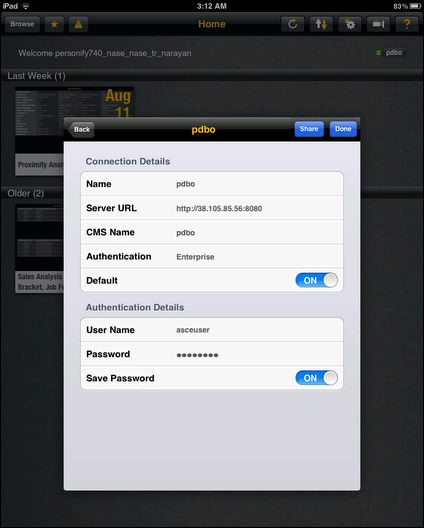
4. Add
the following connection information:
· Name - BOSERVER
· Server URL - http://<BOSERVER>:8080
· CMS Name - <BOCMC>
· Authentication - Enterprise
· Default - On
· User Name - Data Analyzer
User ID ( ex PPROD_ORG_ORGUNIT_TR_USER)
· Password - personify password
· Save Password - On
5. After
entering the above values, click Done.
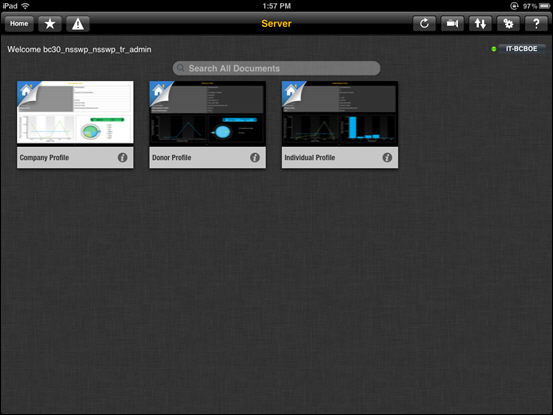
6. Click
the new connection added to log on to the server.
Once logged in, you should see the reports copied to the category.
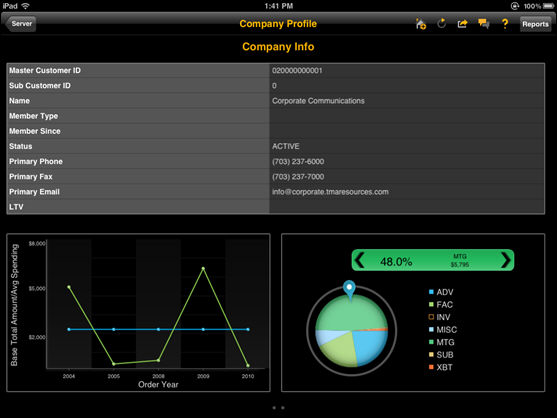
7. Click
on any of the reports to view the report output.
SAP BI App Limitations
Below is a matrix showing the functionality of Data Analyzer reports
that are supported on SAP BI app for BO XI 3.1.
| Mobile Apps |
Features |
BOE 3.1 |
| SAP BI (Data Analyzer Reports) |
Bar Charts |
ü |
| Line Charts |
ü |
| Pie Charts |
ü |
| Open Doc Links (Connection to other Reports) |
ü |
| Reports with prompts |
ü |
| Plotting data on Google Maps |
X |
| Input Controls |
X |
| Drillable reports |
X |
| Reports with Sort and Breaks |
X |
| Crystal Reports |
X |
| Other Types of Charts |
X |
The
SAP BI app available on Play Store for Android devices only connects to
BI 4.0 environment.