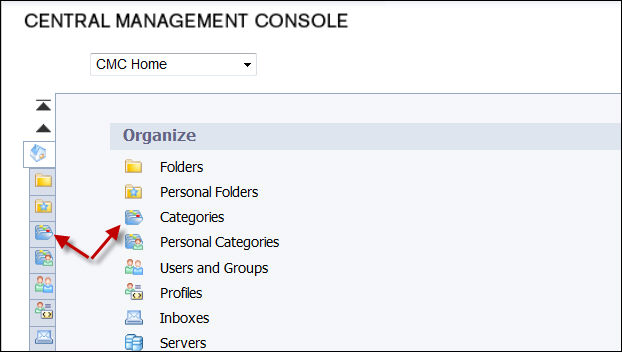
1. Login
to CMC and navigate to Categories
using either option shown below.
2. Click
the category icon to open a new pop up for creating a category.
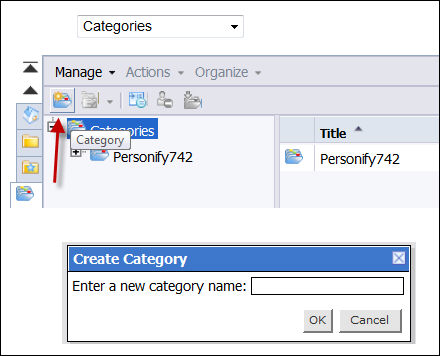
3. Enter a name for the category to reference your environment folder, for example: PPROD.
4. Once
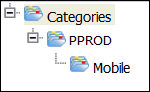
the category is created, click on it and repeat the above step and name
the new category “Mobile”.
The folders will appear as displayed below.
 Naming
the category Mobile is critical because the app will display the reports
stored only in this category.
Naming
the category Mobile is critical because the app will display the reports
stored only in this category.
5. Select Manage > Top Level Security > All Categories.
6. Click OK on the message box that appears.
7. Select Everyone Group and click Assign Security.
8. Select Full Control under Available Access Levels, and move it to Assigned Access Levels.
9. Click Apply.
10. Click OK.
11. Close the User Security Screen.
12. Right click the environment folder category you created (PPROD) and click User Security.
13. Click Add Principals and search for [environment folder category_TR] (e.g., PPROD_TR) group and add it to the Selected Users/Groups section.
14. Click Add and Assign Security.
15. Select Full Control under Available Access Levels, and move it to Assigned Access Levels.
16. Click Apply.
17. Click OK.
18. Close the User Security Screen.