 You may need to open more folders before reaching your report.
All reports in BusinessObjects print in the default report file layout using the printer set as Default on your BO server unless you specify otherwise. You can specify a particular report’s printer settings such as number of copies, page range, page orientation, etc.
To configure the custom printer settings:
1. Make sure the printer you want the report to print from is installed on the BO server.
2. Log into the CMC.
3. Click Folders.
4. Click on your environment’s report folder.
5. Open the report you want to specify printer settings for.
You may need to open more folders before reaching your report.
6. Click Default Settings.
7. Click Print Settings; the following screen will display.
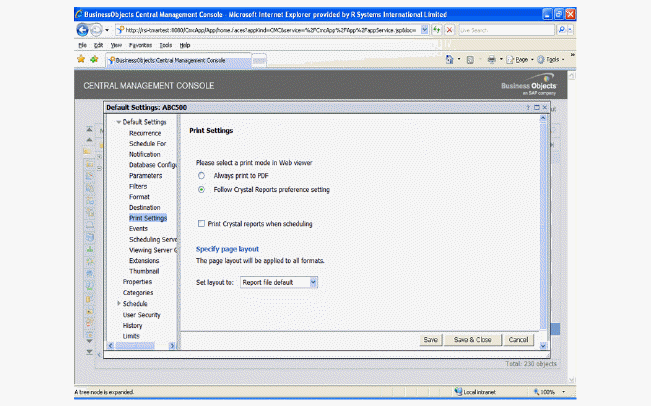
8. To print in the Crystal Reports format, check the radio button for that setting.
9. If you want to use a different printer already installed on your BO server, check the Print Crystal Reports when Scheduling checkbox and enter the name of the printer in the Specify a Printer text box.
To ensure accuracy of your printer name, TMA Resources recommends opening the properties of your printer, copying the name from the properties screen, and pasting it in the “Specify a printer” text box.
10. Set any other options you desire using the available radio buttons, drop-downs, or text boxes.
· Number of Copies
· Collate Copies
· Page Range
· Page Layout
To change the page layout settings, select Custom Settings from the “Set Layout to” drop-down. More settings will display.
11. Click Save and Close.